
Overview
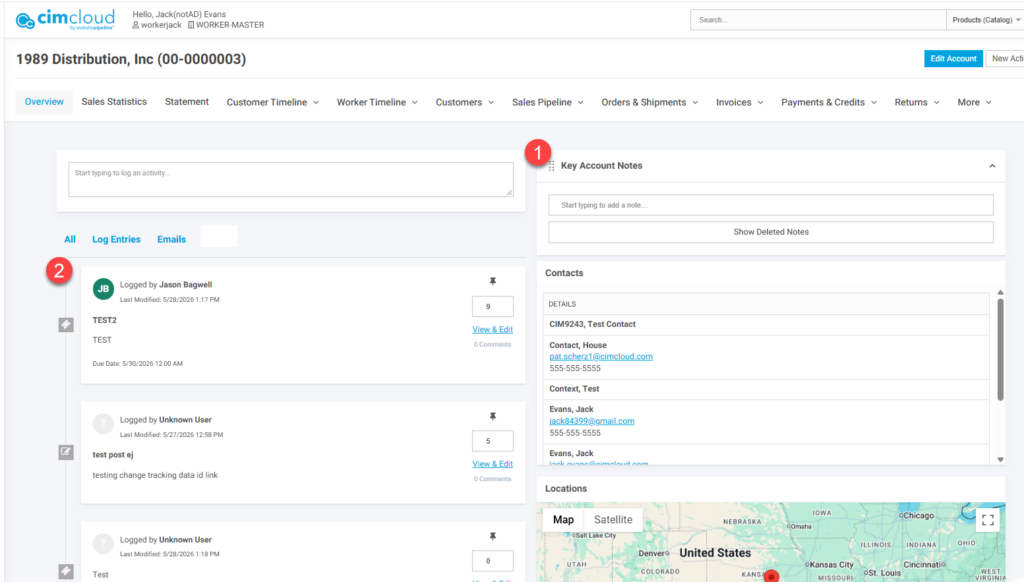
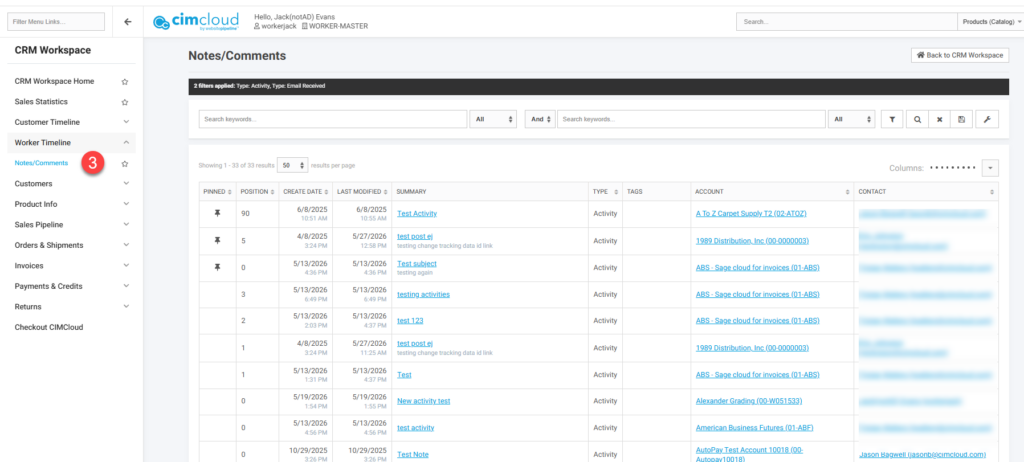
The Interaction Log and Search feature in the CRM Standard bundle allows for creating activity log entries and notes for an account. This includes high level notes (1) as well as individual activities (2) that can be searched, pinned, and sorted. There is also a separate page to see all Activities across all accounts (3). If the Task and Ticketing bundle is also in scope those will also be incuded.
Activities can also be added through an email as explained in this article – Adding Notes to Account Log From Email
What a CRM worker Sees
The interaction log is intended for CRM workers so users with access will see the separate Notes and Comments page as well as activities on the Accounts Detail page.
Notes/Comments Page
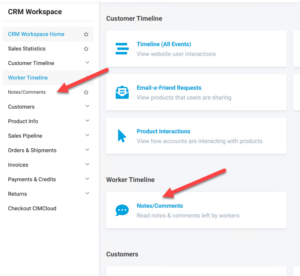
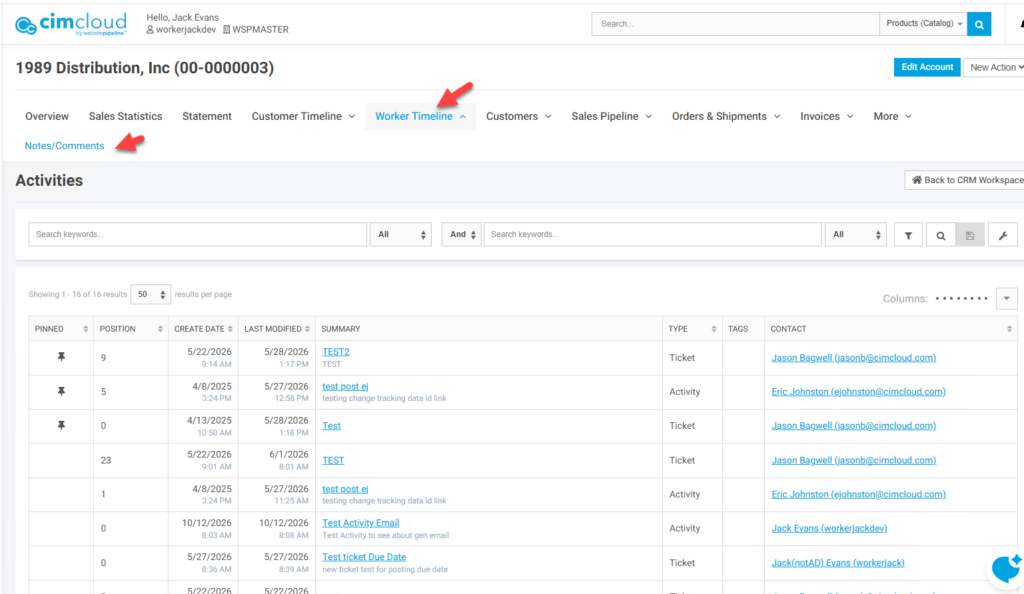
This page is accessible in the Worker Timeline section of the CRM menu
This page provides a view of the activities across all accounts. It does not include Key Account Notes and does include Tasks/Tickets if in scope. This page sorts with Pinned activities at the top, then sorts by Position descending, and then by Date Modified descending. Activities can be pinned or unpinned and position set through the activity edit feature. Activities can be edited from this page by clicking on the Activity title in the summary field.
Note that Activities cannot be created from this page they are created on the Accounts Detail page as noted below.
Tags can be assigned to the activities to help with searching and identification. Tags can be created and managed in the worker portal as noted below in the admin worker section.
The current Note Types available are Activities (All activities created on the account) , Emails Received (Automatically set when using the email process to create activities referenced above), or Tickets (Requires the Tasks and Ticketing bundle). The system supports adding new Types as noted below, but this is for future use as the system does not currently support setting different activity types. Types are set automatically based on where the record is created.
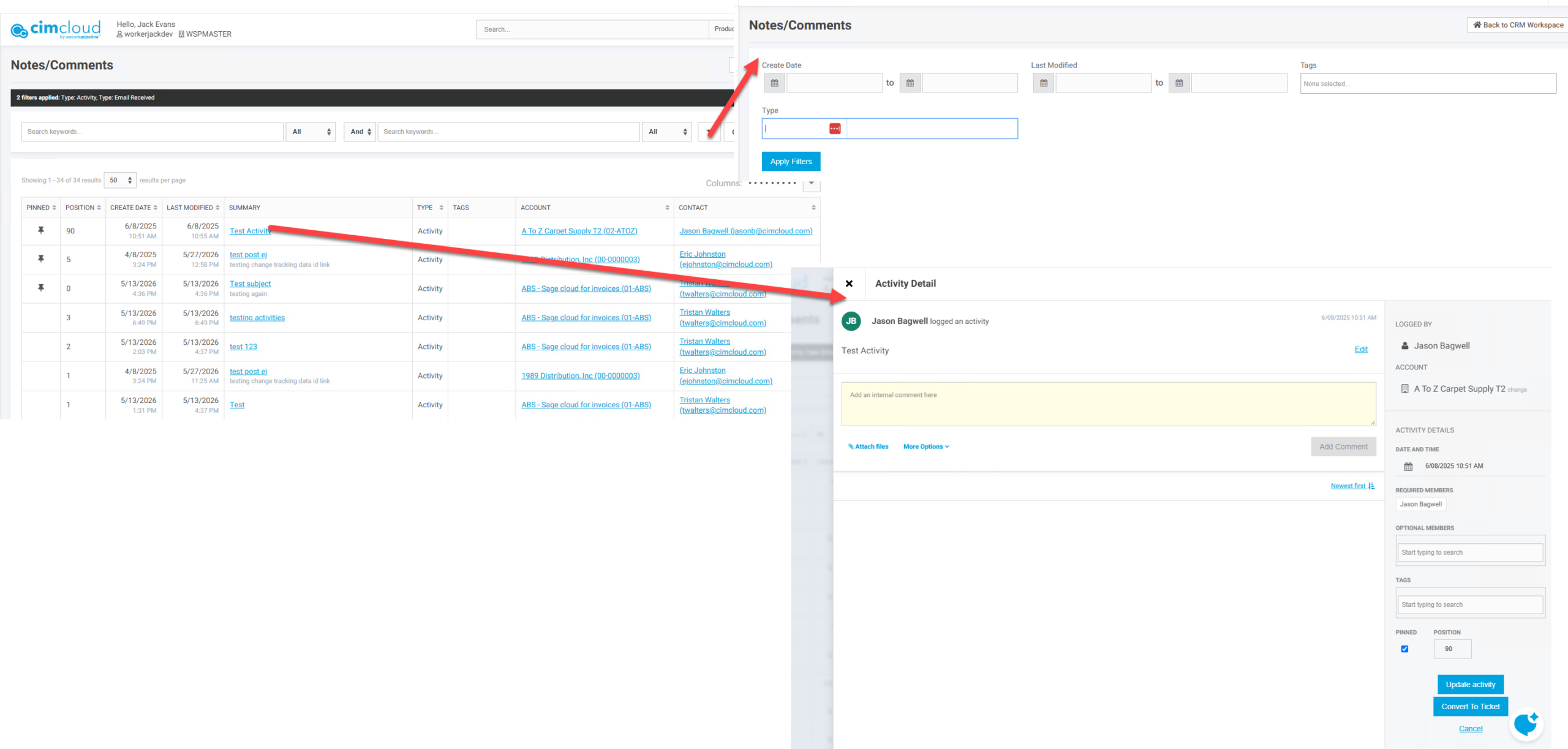
When editing an Activity you can:
- Edit the title by clicking on the Edit link
- Edit the activity note by clicking on that edit link
- Add internal notes (multiple notes can be added) and will display below the main activity note
- Attach files
- Under the More Options link there is a space to email users. This does not currently function and is for future use.
- Change the Account associated with the activity (click the change link next to the account)
- Update the Created Date and Time
- Change and add optional and required members
- Add and change tags (tags are created by system administrators as noted below)
- Set the Activity as pinned or unpin it
- Set or change the position
- If the Task and Ticketing bundle is in scope the Activity can be converted to a Ticket.
Accounts Detail Page
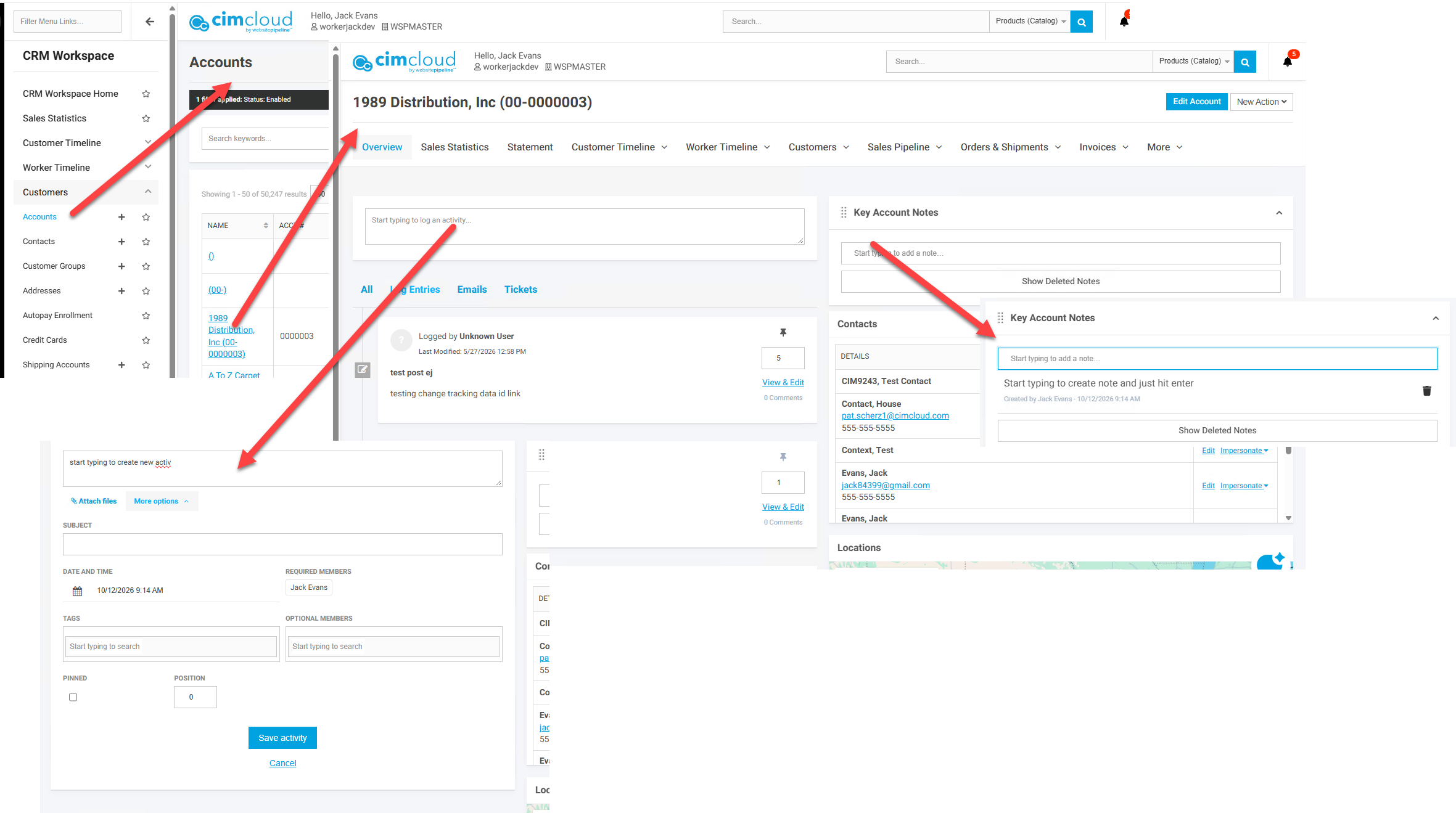
On the Accounts Detail page (accessed by clicking on the Account name from the Accounts page in the worker portal) you can:
- Add/View Key Account Notes (Upper right section). These only display here and can be deleted if desired. Multiple notes can be added. To add a new note just start typing.
- See Activities for just this account. These are the same Activities that can be viewed across all accounts on the page noted above. These display with Pinned Activities at the top, then Position descending, then Date Modified descending.
- View and Edit Activity details (Same option as noted above from the Notes/Comments page)
- Create new Activities. Just start typing in the field to start creating the Activity. Click on more options to see additional fields.
Activities can also be seen for the account by selecting Worker Timeline and Notes/Comments to see a view of the page above filtered by just the account. This can be used to search for specific activities if needed.
What an Admin Worker Sees
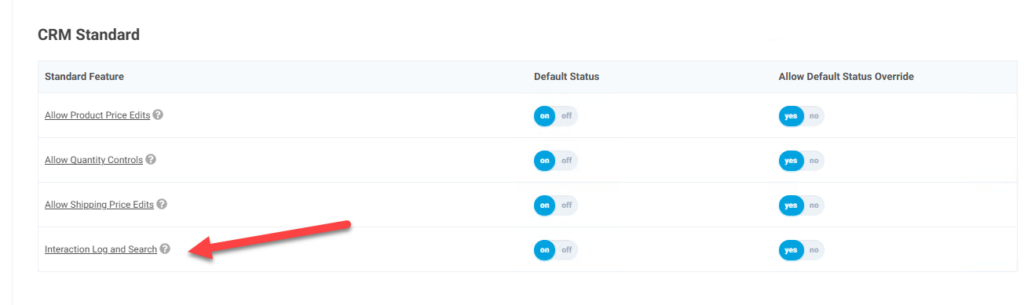
Access to Activities and Notes requires the workspace feature Interaction Log and Search to be applied to the worker through a worker group or turning it on globally in the workspace settings.
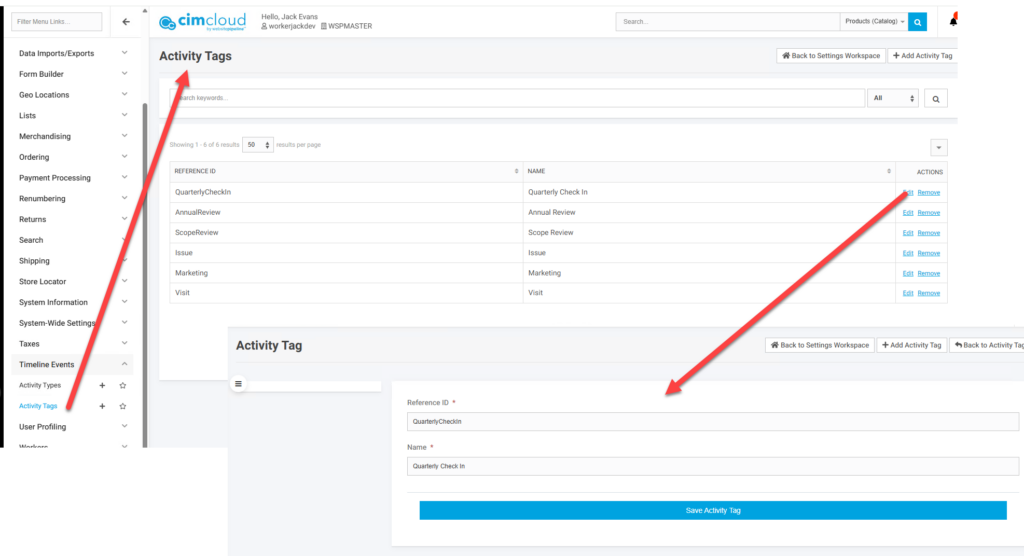
Admin workers can create new Activity Tags and Types. Currently creating new Types does not ad any new functionality since there are no ways to set any new types. This is for future use so will not be reviewed.
Activity Tags can be created, edited, and removed from the Activity Tags page in the Settings workspace and Timeline Events > Activity Tags menu.
What a Customer Site User Sees
This functionality is strictly for workers and does not impact anything on customer sites.