
Overview
This article shows details of the quote creation process and the Quote features associated with the CRM Standard bundle. Article, Basic Quotes Workflow , discusses an overview of quotes with conversation logs workflow and how responsible parties are set from a high level.
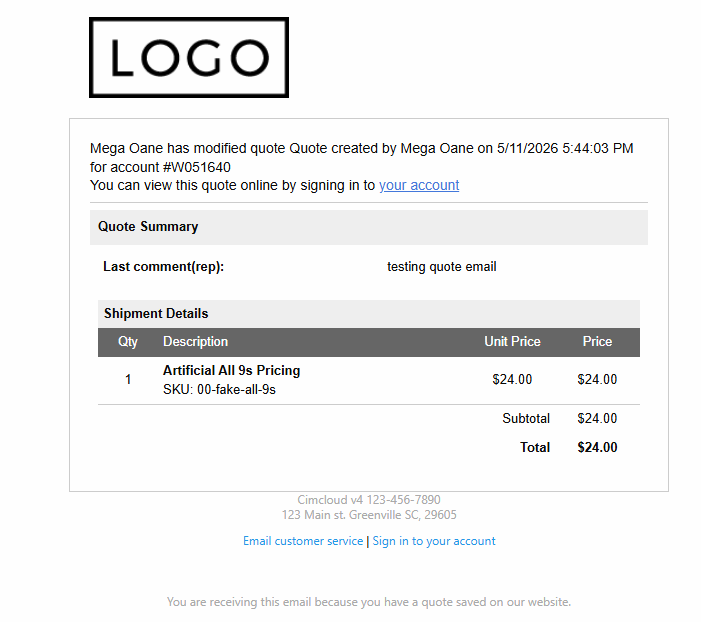
The Quotes with Conversation Logs feature allows for a back and forth between a sales rep (worker) and a customer (contact) on a particular quote. This includes a conversation log between the sales rep and customer that can be seen on the quote. An email is generated with the last comment to notify the quote participants when changes are ready for review. If desired it also allows sales reps to override prices, setting limits on what changes can be made to the quote quantities by the customer, and to override shipping costs. Either the sales rep (worker) or the customer can turn the quote into an order on the website.
When a quote is placed it becomes an order, the record is converted from a quote to an order. A separate order record is not created. A quote is an order that has not been placed.
What an Admin Worker Sees
Quotes with Conversation Logs are turned on by the application feature, Quotes Tracking w/ Conversation Logs, in the Quotes/Ordering tab and CRM Standard bundle section.

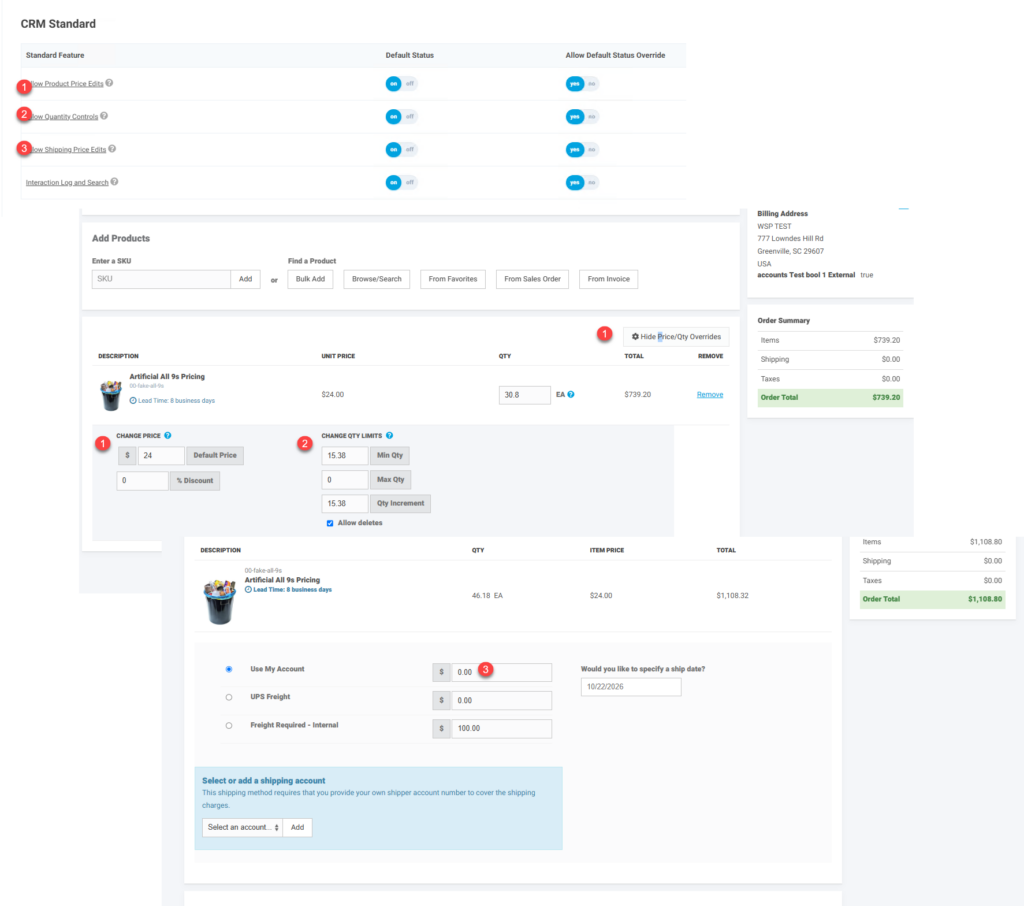
Worker specific abilities to be able to override price, set quantity limits, and/or override shipping price are controlled with the workspace features; Allow Product Price Controls, Allow Quantity Controls, and Allow Shipping Price Edits in the CRM Standard section.
What a CRM Worker Sees
CRM workers can see existing quotes based on the accounts they have access to as well as create quotes for users on their accounts.
Existing Quotes
Access to existing quotes is through the Quotes page in CRM Workspace and menu Sales Pipeline > Quotes. Information includes when the quote was created, when last modified, account, contact, current status based on who it is waiting for and the current stage, and the total dollar value of the quote. By clicking on the quote number the quote record is opened in the worker portal in impersonation mode. While in impersonation mode other menu options are not available. To leave the quote click on the “Leave Workflow” link at the bottom of the screen.
This is where you can access quotes that have been submitted by users to their sales reps.
Different order actions are available based on the current status of the quote as explained in – Basic Quotes Workflow
With the order actions is the ability to add comments and see past comments. If the quote is returned to the user and email with the most recent comment is generated.
If the quote is placed a standard Order Confirmation Email will be generated to the user on the order and the order will be queued for sync into the ERP.
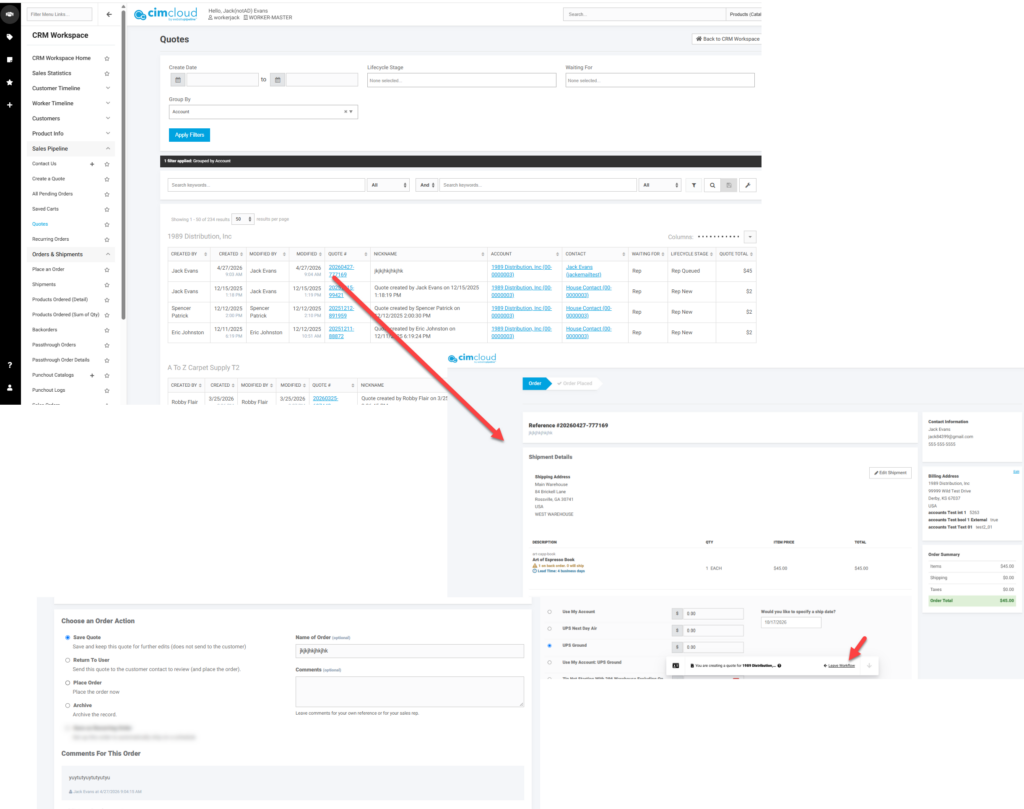
Existing quotes are also available from the account detail page (Click on the account name and and when the account detail page opens select Sales Pipeline > Quotes from the menu in the header). This gives the page above filtered for the specific account.

Quote Email:
Quote emails are sent based on the following:
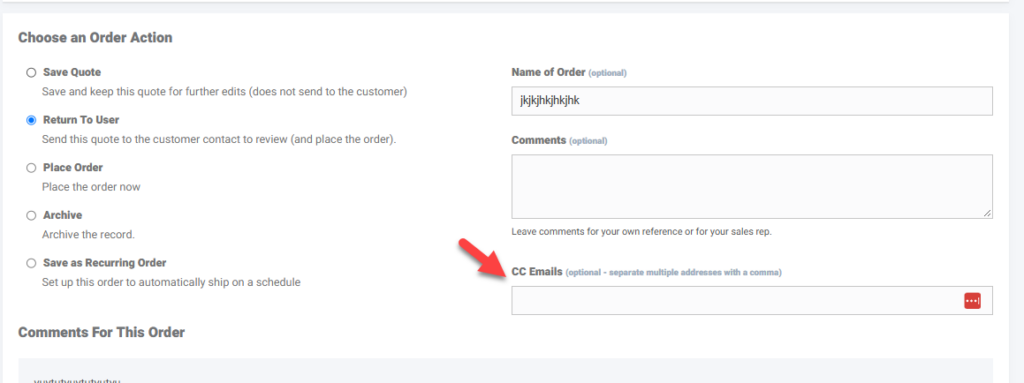
The send to is the contact on the record if created by a sales rep and the quote is being submitted to the user. If the user is submitting the quote then the send to is the rep that originally created the order or the standard BCC email address(es) on the account if originated by the user. If desired a standard CC field can be enabled for any desired order actions and those users will be copied on on any of these emails. Currently just need to request that this field be enabled by CIMcloud for any of the desired order actions.
CC field:
Creating a Quote
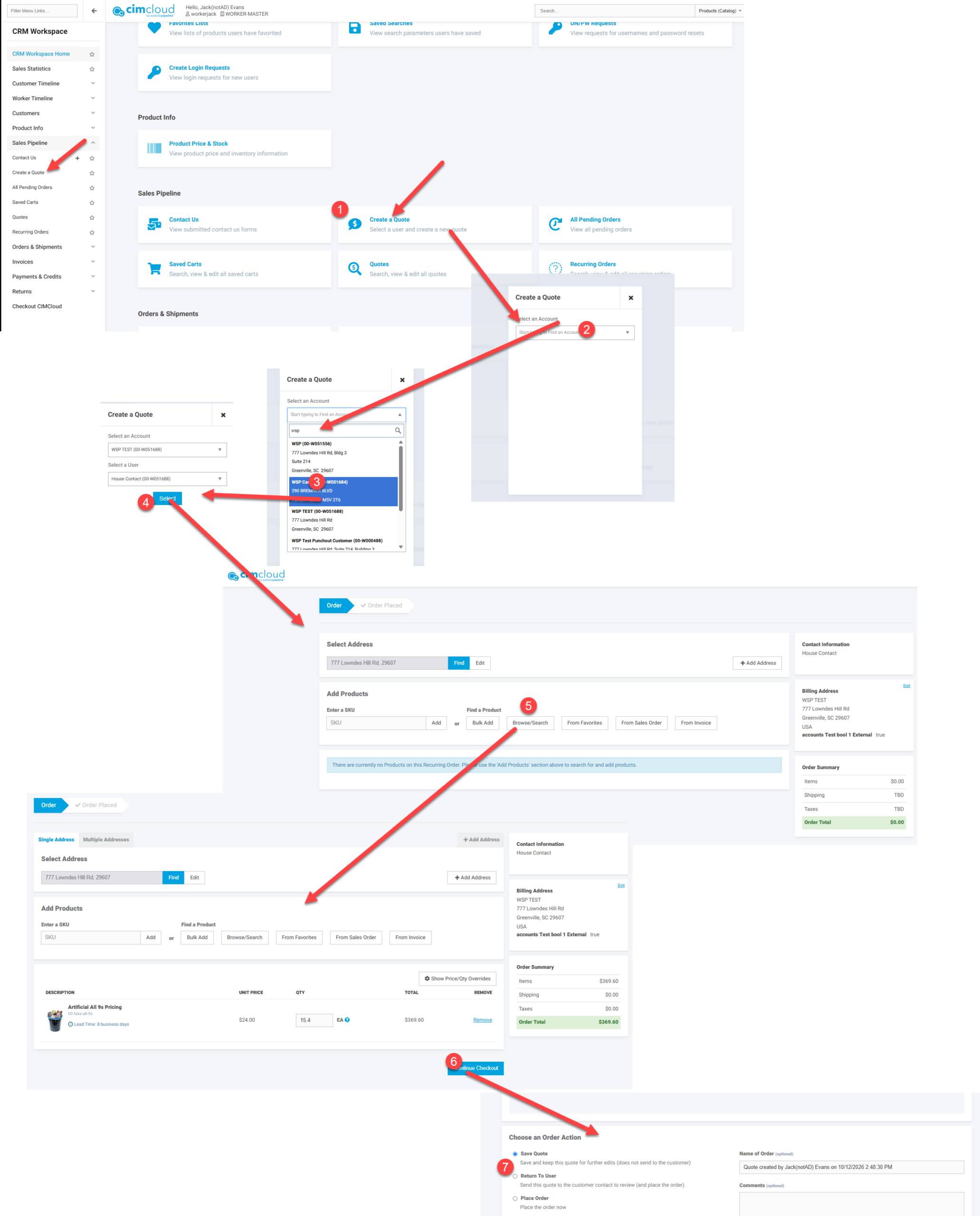
For a worker to create a quote they can click on the Create a Quote link in the worker portal. These are in the CRM Workspace and in the menu under Sales Pipeline > Create a Quote.
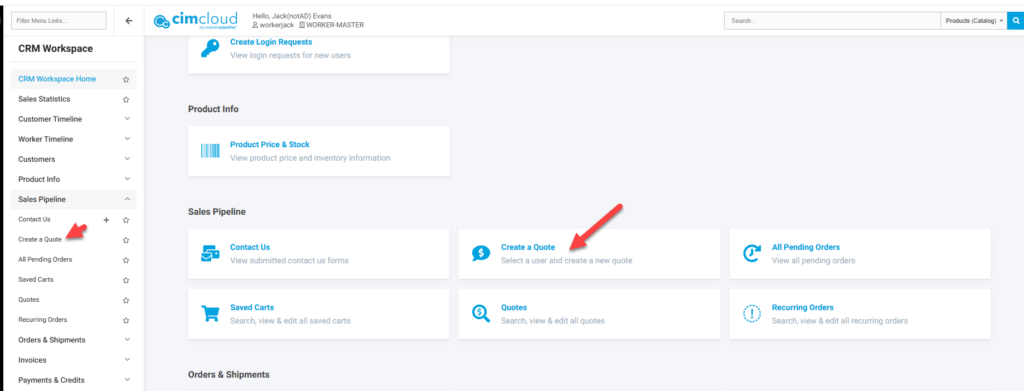
This takes the user into impersonation mode in the worker portal. No other worker portal menu options are available while in this impersonation mode. To exist click on the “Leave Workflow” link in the impersonation bar at the bottom of the screen.
Once you click on the link you will be asked for the account and contact to create the quote under. Pick the contact you want to communicate with for the quote.
Once you proceed you will be taken to bulk add page in impersonation mode where you can add items to the order be upload, entering skus, browsing the catalog, or from the users history.
As noted above if the users has permissions they can override prices as set restrictions as noted below. Once all items are added click on “Continue Checkout”. The quote can be given a nickname or the default can be used. Comments to the user can be added if desired. The quote can be submitted to the user for review at this point, just saved, or placed. The user can communicate back or place the quote directly to create an order. If submitted to the user the email will be sent to the user.
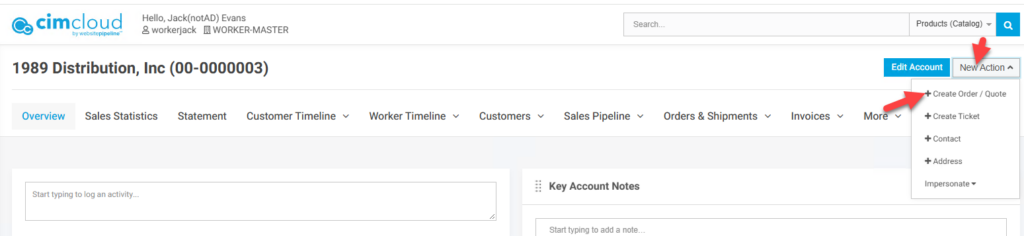
Quotes can also be created for a specific account from the account detail page by clicking on New Action > Create Order/Quote. This takes you into impersonation mode for the House User on the account. Note that anyone on the account has access to quotes in progress but emails are sent based on the user tied to the quote.
Worker Quote Overrides
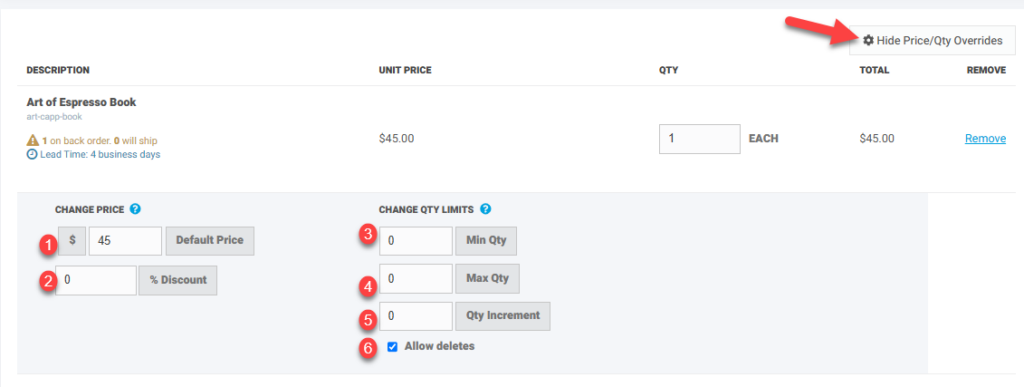
If enabled as noted above workers can override price and set quantity controls. To enable click on the button that toggles between “Show Price/Quantity Overrides” and “Hide Price/Quantity Overrides”. This enables options to:
- Override the current calculated price. This populates initially as the current customer specific price for the product. The system does not allow the price to be set lower that the product cost.
- Set price based on a discount percent from the current price.
- Set a minimum quantity that the user can update on the quote. If the pricing is based on a certain minimum quantity this ensures the user cannot go lower than that quantity.
- Set a max quantity if desired.
- Set an allow deletes. If not checked the user cannot remove the particular line from the order.
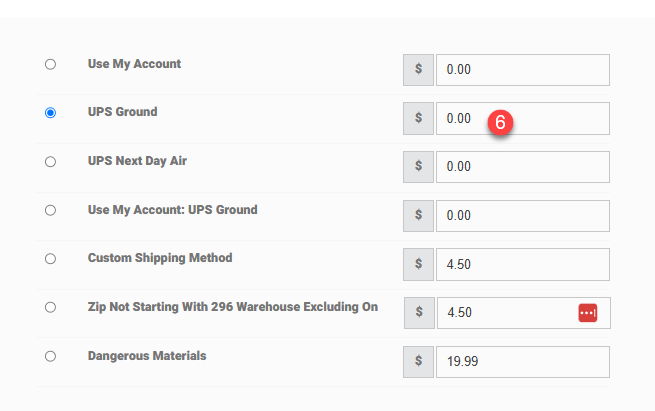
- Allows the shipping cost to be overridden.
Contacts or workers on the sitefront will not see these editable fields and will only see the overridden product or shipping prices.
What a Customer Site user Sees
Sitefront users/contacts have access to existing quotes through a quotes page available in the Ordering menu. Quotes are available to all users on the account, thought the quote is associated with the Contact on the quote and the email on that contact is used when emails are generated.
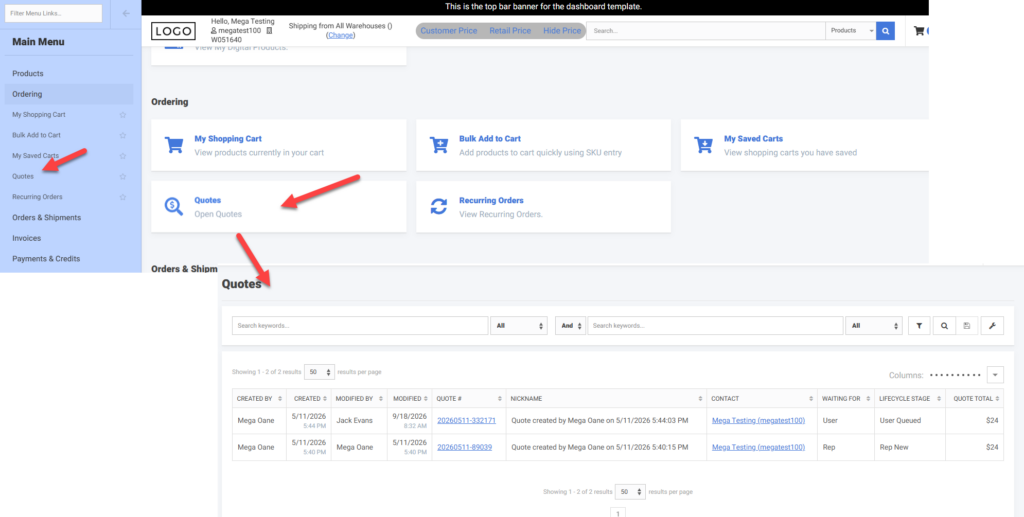
To view the quote click on the Quote# link. This will open the quote on the payment page where they have order actions based on the current status of the quote. To create a new quote the user goes through the process of creating the order but uses the option to Submit to Sales Rep for Help. They will have the ability to see existing comments and add new comments here.
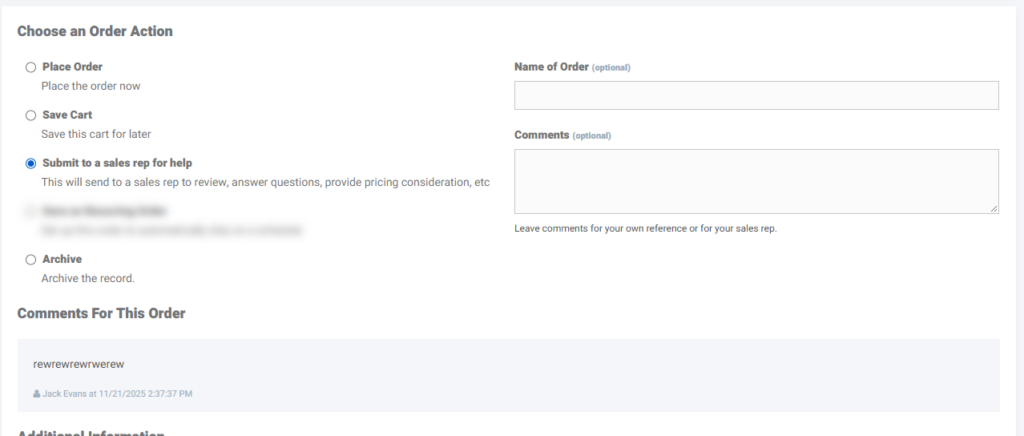
For Contacts to create a quote they just go through the standard order creation process and click on the Submit to a Sales Rep for Help order action, versus the Place Order order action.