
My Equipment lets a signed-in customer save the machines, vehicles or units they own, then shop the catalog filtered to the parts that fit one of them. It is built on an existing nested-droplist faceted search group, so the makes and models it offers are the ones already in your search terms data.
Contents
- What a Customer Site User Sees
- What a CRM Worker Sees
- What an Admin Worker Sees
- Additional Information
- How It Works
What a Customer Site User Sees
Saving a piece of equipment
A customer saves equipment from the faceted search window on the catalog. Once they have chosen a value at every tier of a nested droplist group — for example a Manufacturer and then a Model — a save button appears, labelled “Save to My Equipment”.
A visitor who is not signed in is told they will sign in first and then come back to the same place. Anonymous and guest sessions cannot save equipment.
After saving, the customer is offered the chance to add a nickname and a serial number, and to save another.
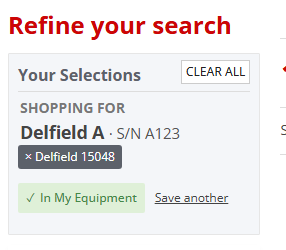
If the chosen combination is already on their list, the save button is replaced by an “In My Equipment” confirmation with a “Save another” option beside it. That is there because a customer may own two of the same model, each needing its own nickname and serial number.
The My Equipment page
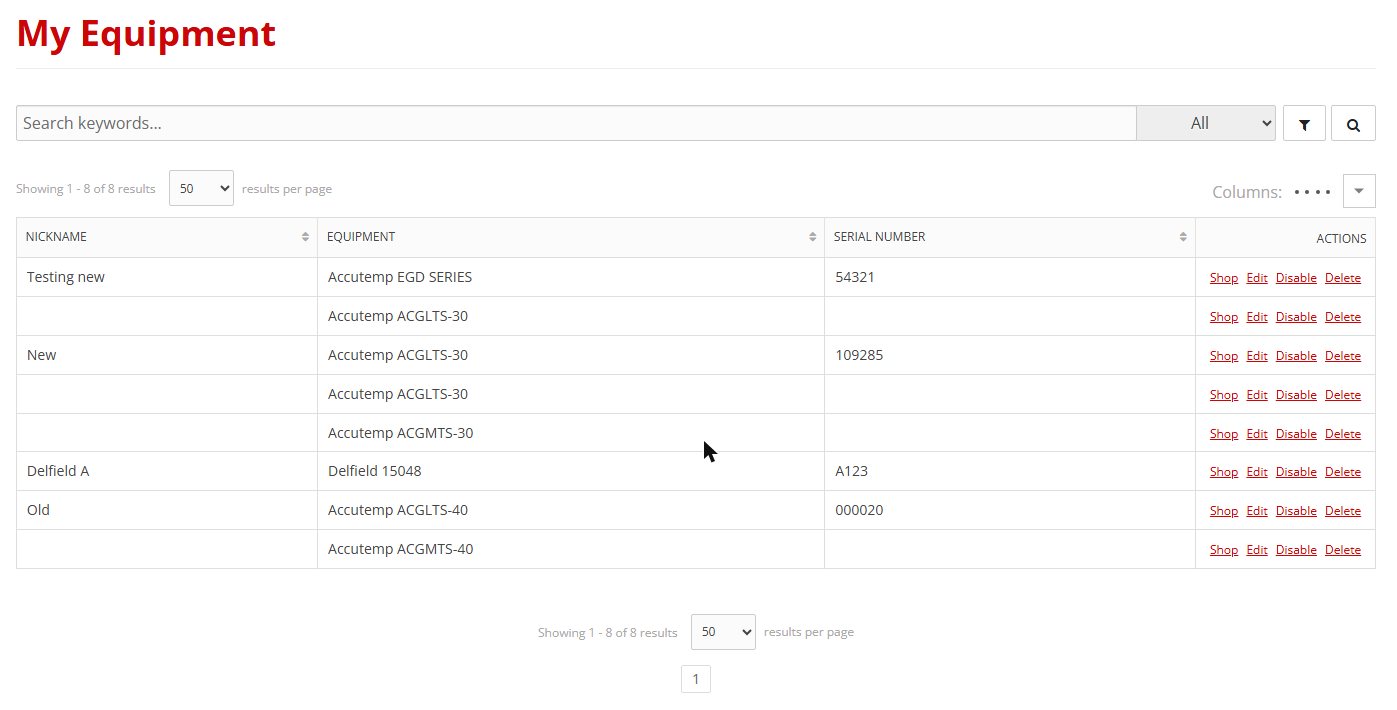
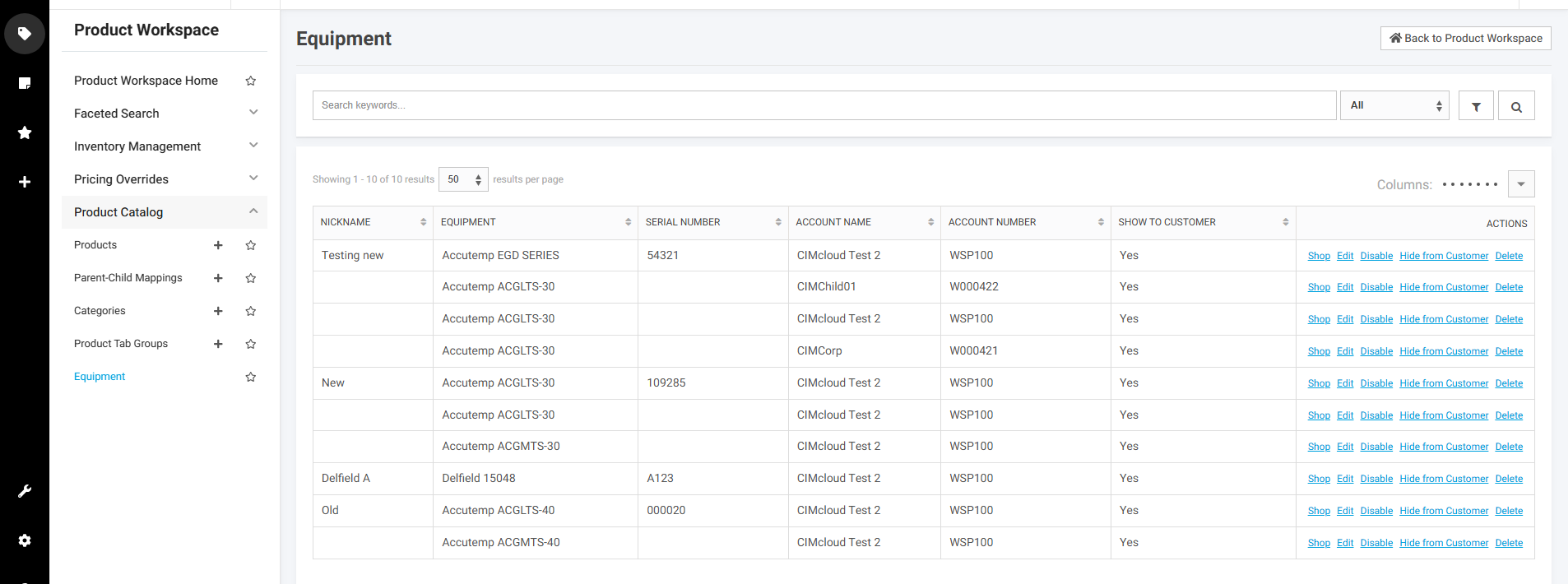
The saved list is reached from the account navigation. Each row shows the nickname, the equipment, and the serial number, with these actions:
- Shop — makes this the active equipment and sends the customer to the catalog filtered to it
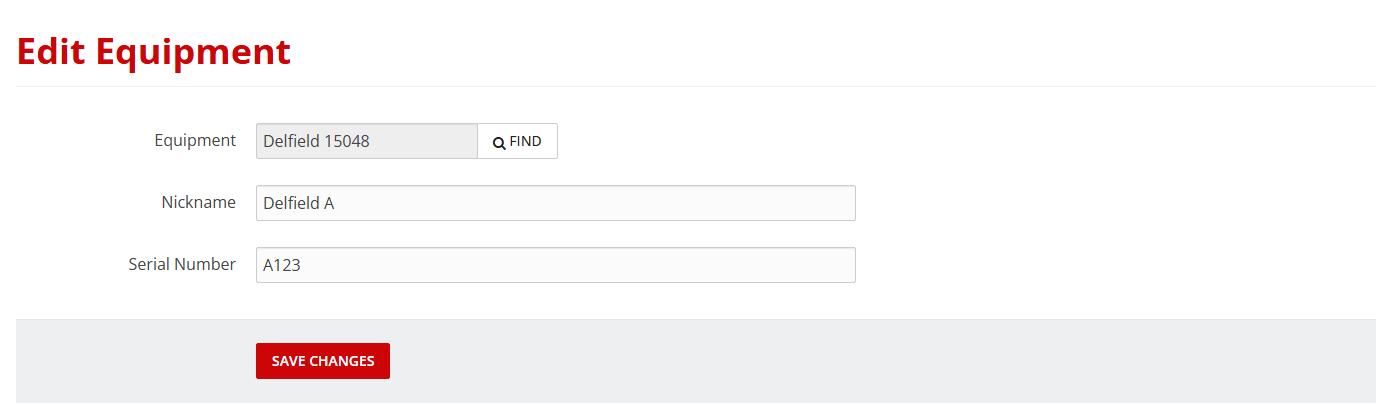
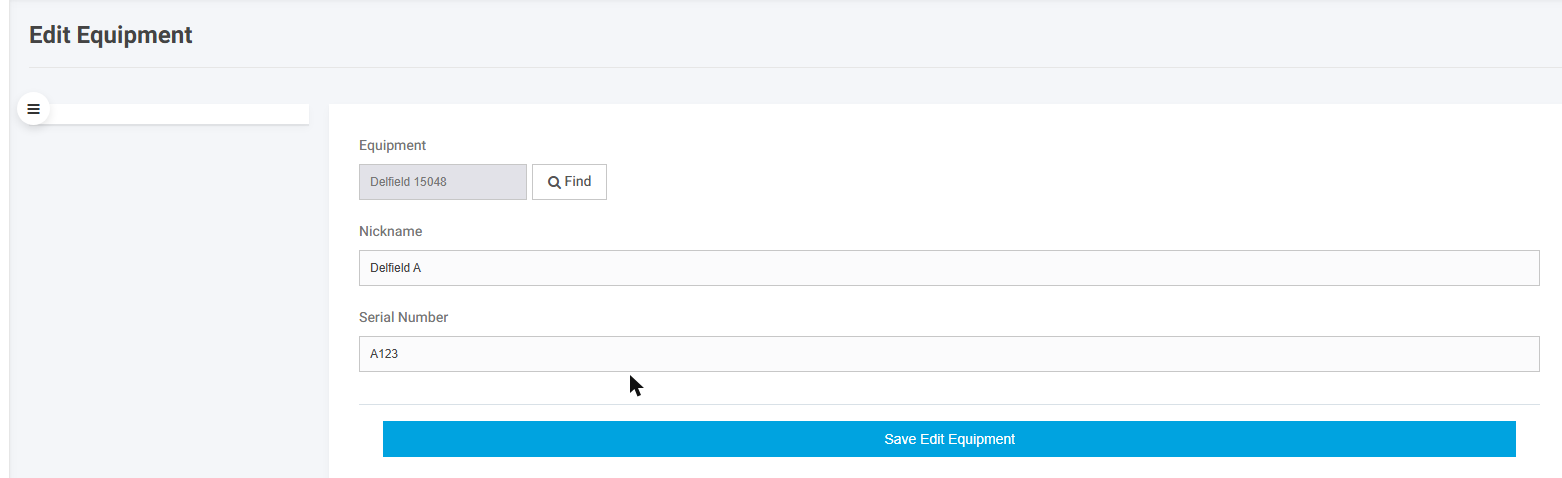
- Edit — change the nickname, the serial number, or the equipment itself
- Disable — keep the record but take it out of use
- Delete — remove it
Shopping for a piece of equipment
When a customer chooses Shop, the site remembers that selection and shows a “Shopping for” indicator. While it is active, these are filtered to parts that fit:
- category product listings
- search results
- the faceted search window
- category product counts
- the search results download
Product detail pages and favorites are deliberately not filtered, so a customer can still reach any product directly.
Clearing the selection
The selection stays active until the customer clears it, and it applies across the whole catalog, keyword search included. A customer who shops for a piece of equipment and then searches for something unrelated will see no results, because the search is still limited to the parts that fit.
Clear All, at the top of the Refine Your Search panel, removes the selection and returns the catalog to its full set. Choosing Shop on a different record replaces the selection rather than adding to it.
This is worth pointing out when you introduce the feature to your customers, so an empty result is not mistaken for a broken search.
Changing the equipment on a saved record
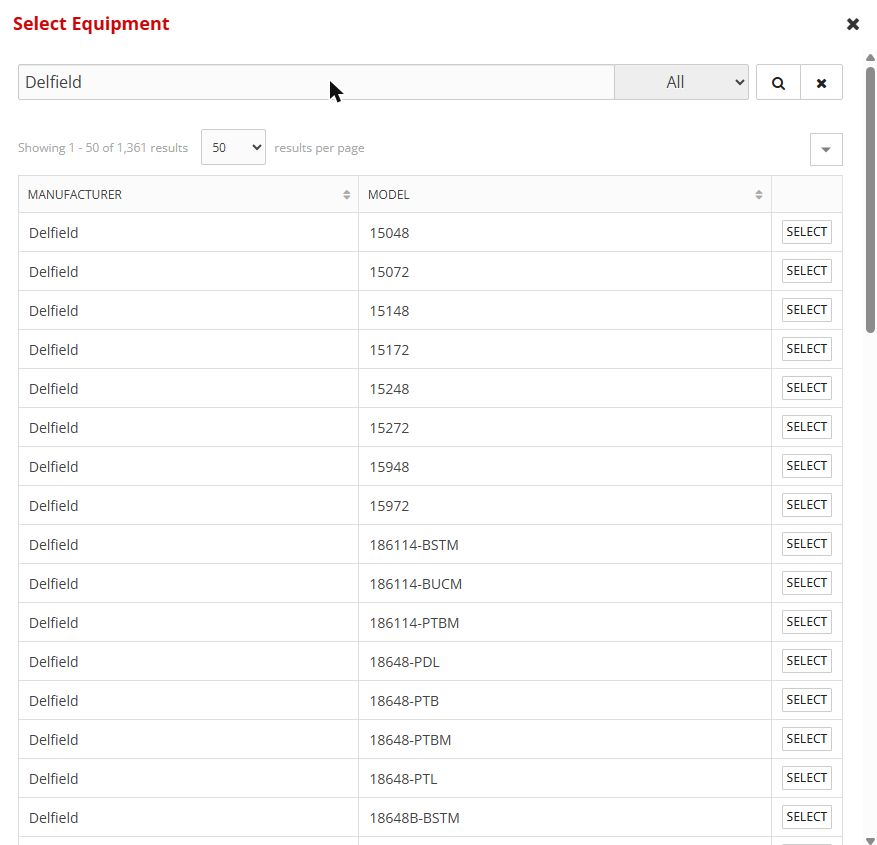
On the edit page, the Find button opens a picker listing every term in that record’s search group, with one column per tier, headed with the group’s own labels. The customer can search and page through the list, and choosing a row fills the equipment field.
What a CRM Worker Sees
Equipment records are scoped to the account on the session. A worker impersonating a customer therefore sees that account’s equipment on the customer-facing pages, and the display is the same as the customer sees.
Managing equipment on behalf of a customer is done from the Worker Portal rather than the CRM workspace. See the next section.
What an Admin Worker Sees
Worker access is a separate feature, Manage My Equipment Records. A worker who has it reaches the list from the Product Workspace, under Product Catalog, and sees three columns customers do not: Account Name, Account Number and Show to Customer. The row actions add Hide from Customer, which takes a record off that customer’s own list while keeping it on file.
Fields on an equipment record
Records are held in the user_equipment table. These are the fields a worker can see and set, with the database field each one writes to:
| Field | Database field | Notes |
|---|---|---|
| Nickname | nickname |
The customer’s own name for the unit. Optional. |
| Equipment | nm |
The display name built from the chosen search term. |
| Serial Number | serial_number |
Optional. Relabel this with the serial number setting below. |
| Account | a_id |
Foreign key to accounts.a_key. This is what scopes the record to one customer account. |
| Contact | c_id |
Foreign key to customers.c_key. The contact who created the record. |
| Search group | sg_id |
The faceted search group the equipment was chosen from. |
| Search term | std_id |
The specific term matched at the time of saving. |
| Tier values | opt1 to opt8 |
One per tier of the droplist group, for example Manufacturer in opt1 and Model in opt2. |
| Install date | install_date |
Optional. |
| Status | status |
The standard enable or disable flag. A disabled record stays on file but is out of use. |
| Show to customer | show_to_customer |
Worker-only. Clearing it hides the record from the customer while keeping it on file. |
| Source | source |
Where the record came from. ERP-sourced records are read-only for make and model. |
Equipment that arrives from an ERP sync is owned by the sync. Its make and model cannot be changed on the website, and the edit page does not offer the Find button for those records. The nickname and serial number stay editable.
Additional Information
Before you turn it on
My Equipment reads the same data as Make & Model Search, so the prerequisite is a faceted search group configured as nested droplists — a display type of text-droplists-N, where N is the number of tiers, up to 8. Each term in that group carries its own value for each tier.
Without such a group there is nothing for a customer to pick, and the feature has no data to work from. If you are not already running Make & Model Search or a similar nested droplist group, set that up first.
Turning it on
Two features control it, and you grant them to user groups the same way as any other feature:
- My Equipment — the customer-facing feature: saving, the list page, and catalog filtering
- Manage My Equipment Records — Worker Portal access, including the Show to Customer control
You also need a navigation link pointing at equipment.asp so customers can reach the list page. It is added as part of the standard setup with the label “Equipment”.
A customer must be signed in. Granting the feature to a group that includes anonymous or guest sessions does not expose it to them.
Renaming it for your business
“Equipment” will not be the right word on every site. Three settings control the wording in the feature itself — the save button, the page heading, the list columns and the edit form:
- the singular label — default “Equipment”
- the plural label — default “Equipment”
- the serial number label — default “Serial Number”
A site selling vehicle parts might set these to “Vehicle”, “Vehicles” and “VIN”. A site selling appliance parts might leave them as they are.
The navigation link has its own label, set when the link is created, and it does not follow these settings. If you rename the feature, rename the navigation link too so the menu and the page agree.
How It Works
Equipment records belong to the customer’s account. A customer sees only their own account’s equipment, and that scoping is applied on the server for every page, not just in the display.
The active “shopping for” selection is held in the customer’s browser, so it persists from page to page but is specific to that browser. A customer signing in elsewhere keeps their saved list but starts without an active selection.
By default the selection lasts for the browsing session and is cleared when the customer closes the browser. A setting is available to make it last a set number of days instead, if you would rather a returning customer pick up where they left off.
The catalog filter is applied on the server from the saved selection rather than from the address bar, so browsing with an active equipment does not fill the URL with search term parameters.
Each saved record keeps both the specific term it was matched to and the individual tier values. If the underlying search terms are later renumbered or reloaded, the record is re-matched on those tier values, so a saved piece of equipment survives a terms refresh.