Overview
This article reviews the feature, New Login and New Account (Self-Create) with Approval and ERP Round Trip, that is part of the Advanced B2B Portal bundle. This feature allows new customers to request an new account, have the account reviewed in the CIMcloud worker portal and either approved or rejected, if approved sync the account to create a customer in the ERP, and send an email to the user letting them know the request was either approved or rejected. This process does create the Customer in the ERP outside of placing the first order in case set-up is needed in the ERP prior to ordering.
What a Customer Site/ New User sees
New users will see a link that has been set up with the desired wording, typically “Request an Account”
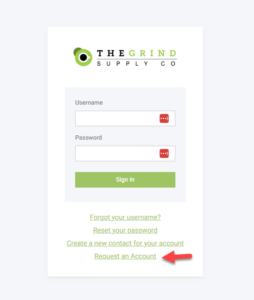
This will open a form for them to enter the needed information to create their user/contact and account

Once completed they will see a configurable message that their request is under review. They will also receive the standard New Account Notification email.
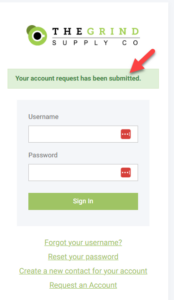

Once the request has been reviewed and processed they can receive an email that notifies the user that the request was either approved or rejected. If approved the user has access to the site based on their set-up and the account information is based on the data synced from the ERP and set up in CIMcloud.

What Worker Portal Users See
The following depends on the access level of the worker
Approve/Reject Process
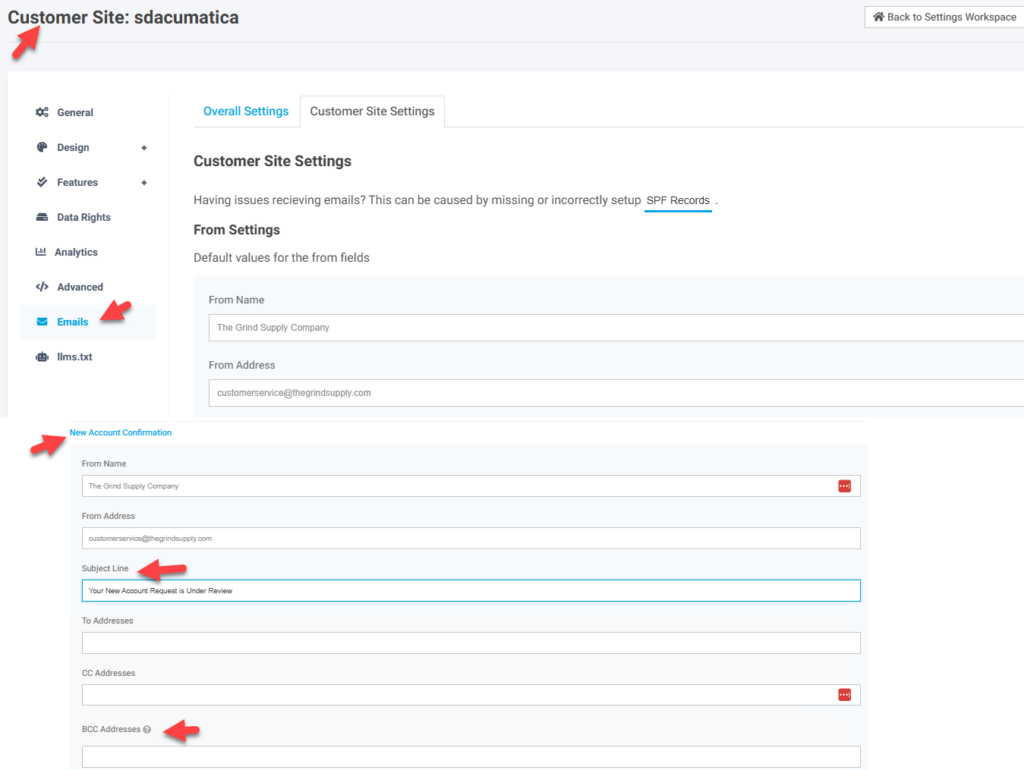
Typically the group responsible for approving or rejecting the account request will be set up as BCC on the New Account Notification Email. The created contact is created disabled so the user cannot log in until the account is approved. The responsible party can then go to the Worker portal and review the account. On the Account Edit page they have the option to “Send to ERP” (Approve) or “Reject”. If approving they should also enable the contact record.
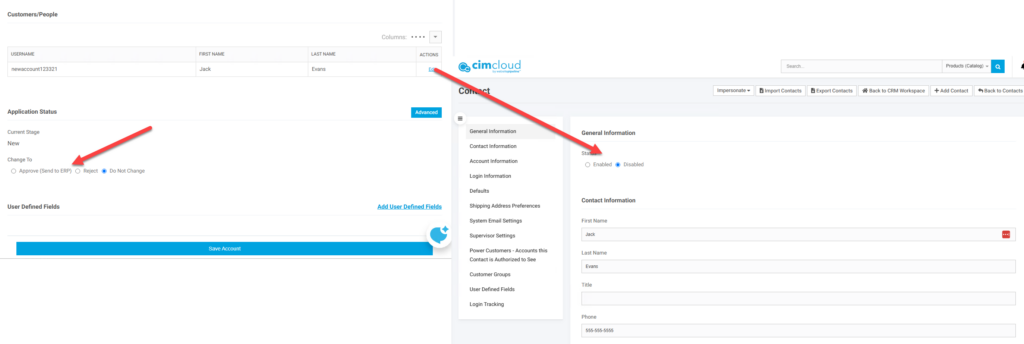
If set to “Send to the ERP” the account will sync to the ERP and create the customer in the ERP. When it syncs back to CIMcloud it will trigger the Account Approved/Rejected Email with information that the account has been approved.
If set to Rejected the account is typically set to disabled by the worker and the Account Approved/Rejected Email with information that the account has been rejected
Set-up
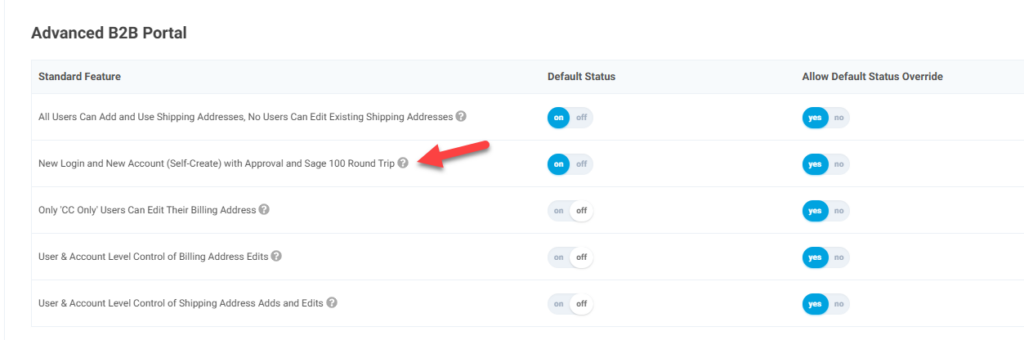
The feature should be enabled so that that the fields on the account Add/Edit page are available. The feature, New Login and New Account (Self-Create) with Approval and Sage 100 Round Trip, is available in the Customer Data tab and Advanced B2B Portal bundle section.
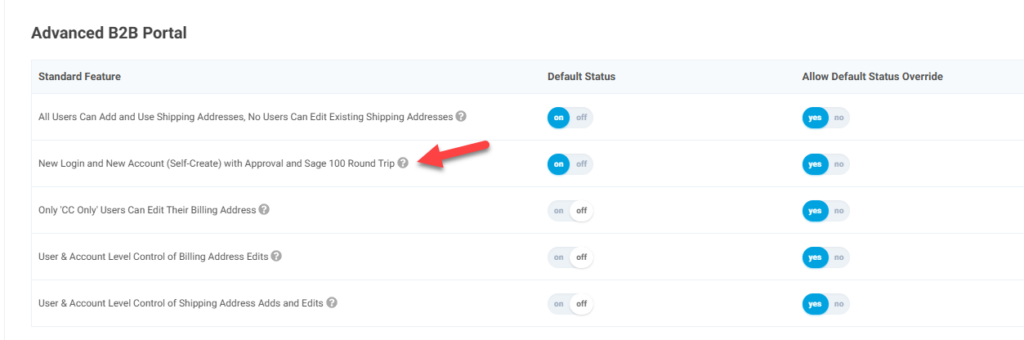
The standard account create settings should be set with the desired information. These settings are in the Customer Data Tab, the Starter Customer Portal w/CRM and Content Workspace bundle section, and feature, Allow Visitors to Create a New Account.
The Auto-login new customers after creation(Create New Login and Account) feature should be set to No so that the contact is created disabled and the user cannot use the account until approved.
The other feature settings should be set with the desired messaging and defaults.
The New Account Confirmation email Subject is typically updated to indicate that the Request is being reviewed and any BCCs added