Overview
While some CIMcloud customers have great marketing websites and are just looking to enhance their eCommerce functionality for B2B customers, some come to us needing to create (or re-create) their public facing website.
Sometimes this is simple content pages that tell site visitors who you are and what you do, but many times businesses see this as an opportunity to publicly display their product offering online.
By leveraging the CIMcloud Public Facing Catalog bundle you have a website template that will allow you to acquire new customers, break into new industries, or simply just do a better job of marketing your business offering.
Summary of Features
- Retail Product Catalog
- Public facing catalog that allows you to display your products online, then probe users to log in or contact the business for pricing and order capabilities
- Mobile Responsive Design Template
- Provides a modern user experience where users can access your website on any device that has an internet connection, without experiencing aesthetic or technical issues
- Option to Show / Hide Pricing
- Gives your business the flexibility to show retail pricing to perspective customers, or require a login to see pricing to avoid competitor gauging
- Option to Show / Hide Inventory Levels (requires inventory bundle)
- Allows you to control whether or not you want to publicly show inventory availability
- Sitemap Auto-Generator & Search Engine Optimization Tools
- Provides you with tools and capabilities to implement bring your SEO strategy into your CIMcloud website
- Featured (“Trending”) Products
- Controlled within the Product Workspace, you can set specific products to feature on your homepage (or any other content pages) to capture audience attention
- Store / Dealer Locator
- Gives site visitors an ability to find your business location(s) and provides various settings that can be managed as a site administrator
- Google Product Feed
- Allows you to tie a Google Merchant Center for your website with the Google Product Feed to return your products on search results
- Enabling Cart Checkout Options
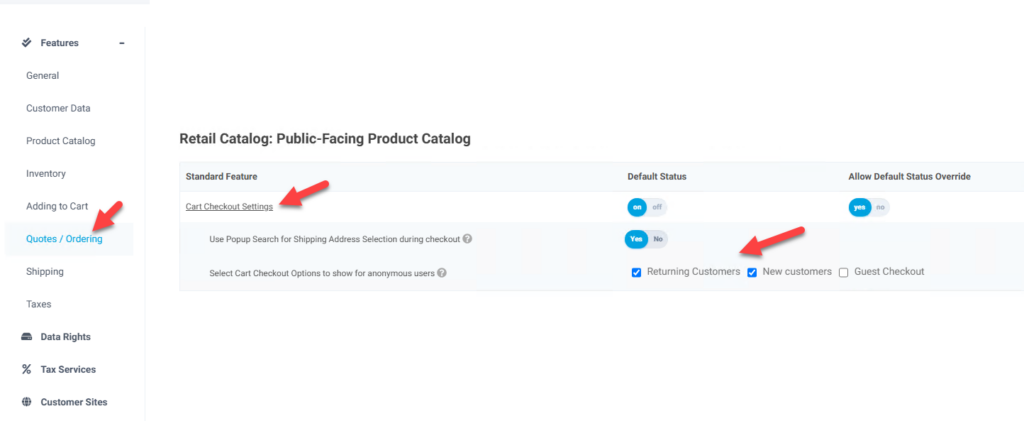
- Through the application/customer site features and settings a site can be set up to require users to do one of the following after users, who have not logged in and have created a cart, can proceed to checkout. Any or all of these can be enabled.
- Log In (Existing Customer)
- Create an Account (New Customers)- The account will be created in the ERP when the order is placed. If there is an existing account with a user with the same email address they will be given a warning and be allowed to log in under the existing account, but it does not prevent them from creating the new account.
- Checkout as a Guest (Guest Checkout)- This allows the user to order without creating a username and password. An account is created in the background to store the needed information and pass it to the ERP to process the order. The system can be set to create a separate customer in the ERP for the guest checkout or these orders can be passed in under a designated customer in the ERP for guest checkout. If there is an existing non-guest user account with a user with the same email address they will be given a warning and be allowed to log in under the existing account, but it does not prevent them from proceeding to check out as a guest.
- The Feature to control these options is In the Quotes/Ordering tab and the Retail Catalog bundle section
- Through the application/customer site features and settings a site can be set up to require users to do one of the following after users, who have not logged in and have created a cart, can proceed to checkout. Any or all of these can be enabled.